
Overview
Admin Console is where authorized admins manage their OpenAI tenant and the product resources their role allows them to access. Use Global settings for tenant-wide identity, or select a ChatGPT workspace or Ads account for product-specific settings.
What you can see depends on your products, plan, and administrator roles. In addition to Workspace settings in ChatGPT, authorized owners and admins can manage available workspace controls in Admin Console. Select the workspace you want to manage. For some workspaces, selecting Workspace settings automatically opens Admin Console. Available pages and actions depend on your workspace’s plan, environment, and permissions.
Open Admin Console and select a resource

Sign in to Admin Console with the OpenAI account associated with your tenant.
If you have access to more than one tenant, select the tenant you want to manage.
Choose Global settings for tenant-wide administration, or select the ChatGPT workspace or Ads account you want to manage.
Open the available section for your task, such as Access, Users & groups, Analytics, or Billing.

A resource appears only when it belongs to the selected tenant and your role allows you to access it. If a section is unavailable, confirm the selected account, tenant, and administrator role.
If you are invited as a global admin before you have an OpenAI account, open Admin Console and create an account with the invited email address. Under Pending invitations, select Accept. Joining the tenant does not give you access to a ChatGPT workspace, API organization, or Ads account.
The tenant’s Users list is not the same as a ChatGPT workspace’s Members list. If counts, a workspace, or analytics are missing, confirm the selected tenant and open the workspace itself. Ask OpenAI Support or your account team to check an unexpected tenant association; do not create a replacement tenant or workspace.
Understand administrator roles and boundaries
| Role or access | What it can manage | What it does not grant |
|---|---|---|
| Global admin | Supported tenant-wide identity settings, verified domains, identity-provider connections, tenant administration, and eligible advertising-account creation. | Automatic owner or admin access to every ChatGPT workspace, API organization, or Ads account. |
| User manager (where available) | Assigned tenant users and groups, where this role is available. | The ability to assign or remove global admins, change tenant-wide settings, or administer another product. |
| Member | Read-only access to supported tenant users, groups, roles, and resources. | The ability to change tenant settings, manage users or groups, or grant administrator roles. |
| Ads admin | Permission to create eligible advertising accounts. | Automatic access to every existing advertising account. |
One person can hold several roles, but each role must be assigned in its own scope. For details about ChatGPT workspace roles, see: Managing members, workspace roles, and seats. A tenant Member role is separate from membership in a ChatGPT workspace.
Rename your tenant
To rename your tenant, sign in to Admin Console in tenant scope as a tenant administrator (Global Admin) and select the tenant you want to update. Open Settings, select Edit tenant, enter the new tenant name, and save your changes. This requires the Global Admin role for the selected tenant; a ChatGPT workspace owner/admin role alone does not grant this permission.
Manage tenant-wide identity

Review domains and sign-in settings
In Global settings, open Access > Domains to review domain verification status and product eligibility. A newly verified domain can initially apply to all eligible ChatGPT workspaces and API organizations. Review the resulting mappings and confirm an administrator recovery path before changing sign-in requirements.
For domain verification and product eligibility, see: Verifying your domain for OpenAI identity.
A standalone ChatGPT Business workspace owner manages SSO and domains from the workspace’s existing identity settings. If those settings are read-only or show Cloud Console ↗, ask a global admin to manage the shared tenant connection. For Business setup and plan limits, see: Setting up single sign-on for ChatGPT Business.
Choose how people join
Automatic account creation and external-domain invitations are configured for each ChatGPT workspace.
Automatic account creation can add eligible people to a workspace when they sign in with an email address from a verified domain mapped to that workspace. It does not require SSO and is separate from SCIM. If your workspace requires SSO, employees must still use it to sign in.
For Enterprise plans, automatic account creation is on by default for the first eligible ChatGPT workspace created in a new tenant. It is off by default for an additional workspace created in an existing tenant. Review the actual setting for each workspace before onboarding users.
On Enterprise plans, automatic account creation provisions full workspace seats under your organization’s normal billing terms. Employees added this way receive the workspace’s default access to tools.
After verifying a domain, choose the workspaces it should apply to. Then review automatic account creation and turn it off for any workspace where you do not want people to join this way.
Before continuing, review seat capacity, existing personal accounts, and any Enterprise or Edu migration prompt. If you plan to manage access through SCIM, turn off automatic account creation to avoid creating users whose access is not managed by your identity provider.
Turning off automatic account creation does not remove existing workspace members.
For employees with personal, Plus, or Pro accounts, see: Onboarding employees with existing ChatGPT accounts.
For directory sync, see: SCIM provisioning and management.
Check directory sync and existing connections
In Global settings, open Access, then select Directory to review available tenant-wide SCIM and synchronization status. Tenant-wide and product-level SCIM connections can both be enabled. However, you can't change a tenant-wide Product access assignment for a workspace or API organization while that resource has product-level SCIM enabled. Coordinate any migration with your OpenAI account team before changing an existing connection.
For directory setup, product assignments, and synchronization, see: SCIM provisioning and management.
Manage external access
Sign in with ChatGPT identifies a member to an application. Delegated access lets the member authorize an application to use specific data and take permitted actions on their behalf. Organization approval makes that access available; each member still completes the application’s authorization flow using their own permissions.
A global admin manages organization-level application permissions in External access in the OpenAI Admin Console. Select the organization you want to configure. These settings apply to users across all workspaces in that organization.
A ChatGPT workspace owner or admin, Ads account admin, or HubSpot administrator does not automatically have global-admin permissions.
Review organization defaults
Organization defaults sets the starting permissions for external applications. You can review an individual application and set an exception to those defaults.
Sign in with ChatGPT is allowed by default when your organization has not set an explicit identity policy. Existing allow or deny policies and application approvals remain in effect. An application can be allowed before anyone connects to it, so an allowed application can show zero connected users.
Open External access and select the intended organization.
Open Organization defaults and review the permissions.
Change the relevant defaults, then select Next to review how each change applies to existing applications and choose any available exceptions. Repeat this step for each change.
Select Save changes after reviewing the effect of your changes.
Allowing identity sign-in does not grant access to connected apps or Ads data. Review those permissions separately.
Review an application’s permissions
Find and open the application in External access.
Open Access to review its permissions and whether they follow the organization default or an application-specific setting.
Change the permissions you want to allow or restrict, and review any confirmation before continuing.
After approving access, ask the member to return to the application and retry the connection or complete the authorization flow.
Organization approval does not connect accounts on a member’s behalf. Members still review the requested permissions and authorize access using their own product permissions.
Review connected users
Open an application’s Users tab to see members with current connections. Allowing an application does not add users to this list.
Connection counts describe current connections, not historical activity or spending. Recent connection changes can take time to appear.
Review connected-app access for Sites
ChatGPT Sites can request permission to use each visitor’s own connected apps. For example, a shared dashboard can retrieve live information using the signed-in visitor’s account and existing permissions.
ChatGPT Sites has its own organization-level access behavior. Identity sign-in is required and cannot be disabled here. If no explicit connected-app policy has been set for Sites, organization-level connected-app access is allowed. Workspace admins must still confirm that Allow use in Sites is enabled for each required plugin.
Open ChatGPT Sites in External access and review its connected-app permission under Access.
Confirm with the workspace admin that the Sites connected-app capability and the individual apps are available in the workspace, and that Allow use in Sites is on for each required plugin.
Ask the member to open the Site, sign in with ChatGPT, review the requested access, and authorize the connection.
All applicable organization, workspace, and individual-app settings must allow access. Member consent and source-app permissions also apply.
The organization-level setting covers current and future ChatGPT Sites. Each visitor authorizes access through their own account. Allowing access does not give every Site access to every member’s connected data.
For workspace settings, see: Managing ChatGPT Sites for your workspace.
Review Ads access for an application
Open External access and select the organization that owns the relevant Ads account.
Open the application, such as HubSpot, and review its Ads permissions under Access.
Allow the access your organization approves.
Ask the advertiser to return to the application and retry or complete the ChatGPT Ads connection.
The advertiser reviews the requested permissions and authorizes access using their existing Ads-account permissions. Organization approval and advertiser authorization are separate steps.
For HubSpot setup, see: Setting up ChatGPT Ads in HubSpot.
Restrict or disable access
You can turn off an optional data-sharing permission without changing identity sign-in. Turning off a required permission prompts you to disable the entire app. Where available, Disable all access turns off all permissions for the app, including identity sign-in, while preserving its saved permission choices. ChatGPT Sites cannot be disabled this way because identity sign-in is required.
Restricting identity sign-in blocks new sign-ins to the affected applications. Existing identity-only tokens can remain valid for up to 1 hour. An application may also maintain its own signed-in session.
If an update fails, refresh the page and review the saved settings before trying again.
Troubleshoot external access
If a control is missing, confirm the selected organization and your global-admin permissions.
If a member cannot sign in to an application, review the organization’s identity default and the application’s settings. After access is approved, ask the member to retry.
If a Site cannot use an app, check the organization setting, workspace availability, Allow use in Sites, the member’s connection and consent, and source-app permissions.
If an Ads account is marked Restricted when connecting HubSpot, ask a global admin for the organization that owns it to confirm HubSpot’s Ads permissions. If the organization has approved the required access and the account is still restricted, contact the account admin.
If Ads access is allowed but the connection still fails, confirm the organization, the advertiser’s Ads-account and application permissions, and completion of the authorization flow.
When requesting help, include the affected organization, workspace or Ads account, the application or Site, and the error message.
Review users, groups, and product access
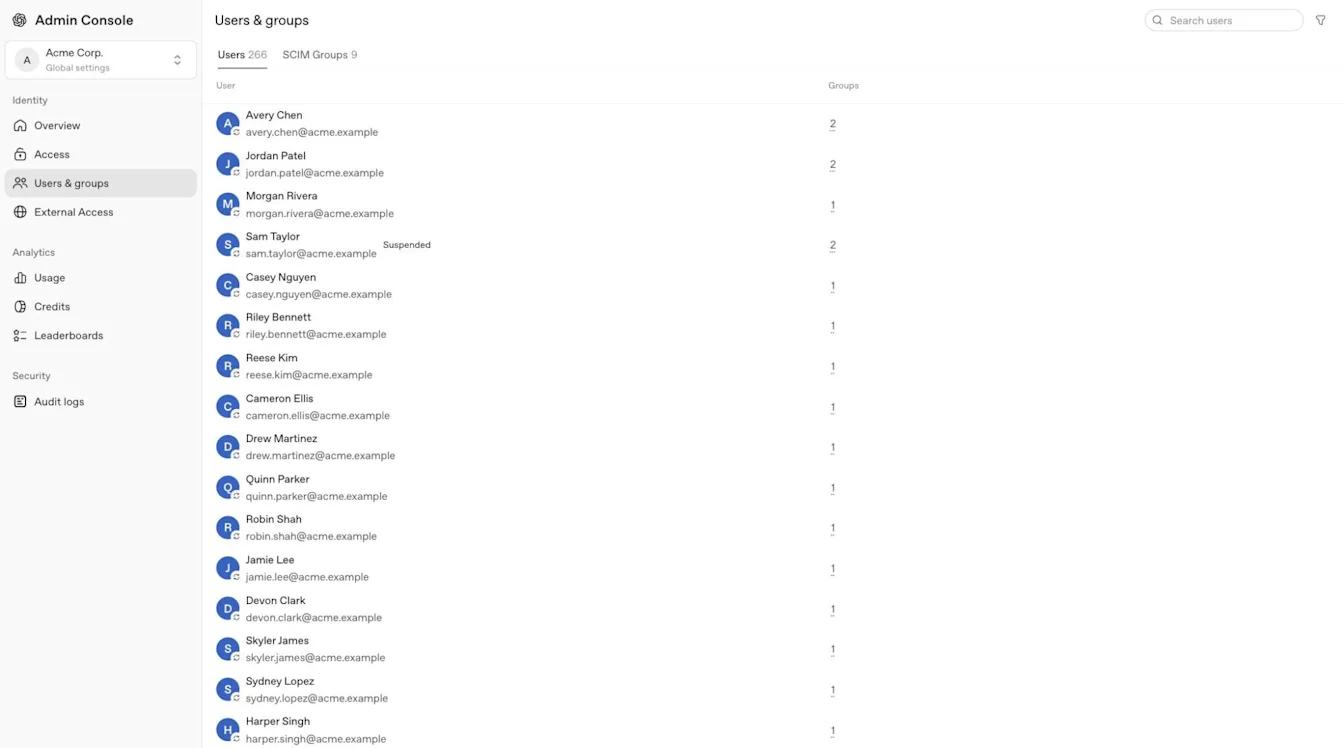
Go to Users & groups and select Users to find a person in the selected tenant. Open the person’s profile and select Access & roles to review product access. Depending on the available view, direct assignments may appear under Direct roles. Select Groups to review the person’s group memberships, and select SCIM Groups to inspect synchronized groups.

For tenant-synchronized SCIM groups, Product access can assign supported ChatGPT workspaces and Ads accounts. Enterprise and Edu tenants can also assign synchronized groups to API organizations. Inspect the corresponding API group and organization membership in the API Platform. Review advertising-account roles in the selected Ads account.
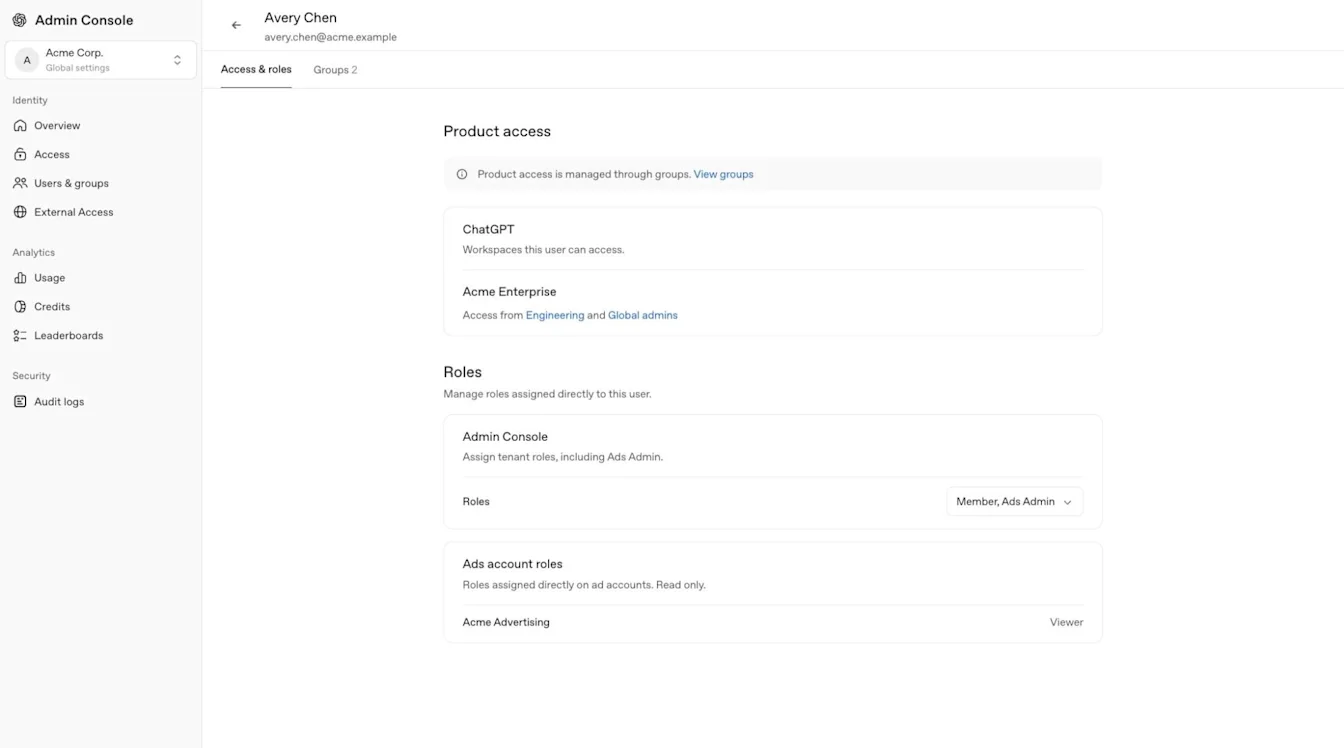
Before granting access, review a group’s existing product and role assignments and use the least-privileged role required. Tenant-wide Product access does not assign custom ChatGPT workspace roles.
A synchronized group is managed by your identity provider. Do not add or remove its members directly in a product. Manage Enterprise and Edu workspace members and groups in Admin Console. Business workspace members can be managed in Workspace settings in ChatGPT or in Members for the selected workspace in Admin Console. Continue managing API organization members in the API Platform and Ads users in the appropriate advertising account. Business does not support custom workspace groups.
For workspace group management and delegated group-manager permissions, select the relevant ChatGPT workspace and see Managing groups and group managers.
The presence of a user in Users does not grant membership across every resource. Tenant-wide SCIM adds users directly to an assigned API organization without invitation acceptance. ChatGPT workspace invitations remain separate. Manual invitations remain specific to the supported ChatGPT workspace, API organization, or Ads account.
Tenant-wide SCIM manages API memberships it creates or takes over. Removing the last qualifying assignment can remove one of these memberships even if it was originally added manually. For setup and offboarding checks, see: SCIM provisioning and management.
Understand user source labels
Where a Source label appears in the tenant user list or profile, it describes how that user record was created or is managed.
| Label | Meaning |
|---|---|
| SCIM | The tenant user record is provisioned and managed through your identity provider. |
| Manual | The tenant user record was created or invited manually through Admin Console. Some profile views may display Custom. |
| Migrated | The tenant user record was brought into Admin Console from OpenAI’s previous account-management system. For example, it may have been created from an existing ChatGPT workspace or API organization membership. |
Check a member’s model access
Model Test helps admins understand why a member can or cannot use a model. It is available to admins on ChatGPT Business, Enterprise, Healthcare, and Edu. Access to Model Test does not grant access to other tenant-wide settings.
Open Admin Console and select the ChatGPT workspace you want to inspect.
Open Models, then select Test.
Search for the member by name or email.
Review their effective model access, workspace defaults, model permissions, roles, and preferences.
Results reflect saved settings. Testing does not grant model access, change settings or usage limits, or override the member’s seat type, plan, or workspace eligibility.
For Enterprise and Edu model availability and limits, see: ChatGPT Enterprise and Edu models and limits.
Manage a selected Ads account
Select the intended Ads account before reviewing Users & groups or account-specific roles. A global admin or Ads admin can create advertising accounts; an ad account admin, member, or viewer receives permissions for a particular account.
For Ads sign-in, account roles, and directory-access rules, see: Managing identity and access for Ads Manager.
Review analytics, audit logs, credentials, and billing
Analytics
Depending on your role and plan, Analytics can include ChatGPT or Codex usage, active users, leaderboards, credits, and exportable activity. Available data windows and refresh times vary by report. Estimated costs, when shown, are planning estimates rather than settled charges or invoices. Where available, a workspace member can review only their own activity unless a separate workspace role grants broader access.
| Analytics area | Historical window | Typical refresh |
|---|---|---|
| ChatGPT and Codex credit analytics | Up to 120 days. | Approximately every 1 to 6 hours. |
| Codex usage analytics | Up to 120 days. | Approximately every 1 to 6 hours. |
| ChatGPT usage analytics | Up to the previous 12 months. | Up to 48 hours. |
Codex product access does not automatically include analytics. Where available, a workspace owner can grant Allow members to administer Codex through a custom role. This gives the user access to supported Codex usage analytics for that workspace without making them a workspace admin or global admin.
Where available, workspace analytics can be filtered by synchronized groups, such as a department or pilot team. Group visibility and analytics access depend on the selected workspace and your role. Follow your company’s or school’s privacy policies.
Where available, estimated costs use the selected workspace’s pricing and are planning estimates, not settled charges. The issued invoice is the authoritative billing record. For deeper ChatGPT reporting, including eligible GPT, project, or skill activity, use the selected workspace’s analytics settings.
Audit logs
Where available, a global admin can open Global settings, then select Audit logs under Security to review tenant-wide administrative activity. Workspace audit logs are separate and available only to eligible workspace owners or admins. If Audit logs is missing, check the selected tenant or workspace, your role, and feature availability.
Changes made through the Codex Policies & Configurations interface are also recorded in workspace audit logs. Authorized admins can review these logs in the UI or retrieve them through the Compliance API to investigate configuration changes.
For access requirements and log retrieval, see: OpenAI Compliance Platform for Enterprise and Edu Customers.
Credentials
Workspace owners and admins can use Credentials > Admin keys in an eligible ChatGPT workspace to manage workspace-scoped Admin keys for supported administration APIs. A global admin role alone does not grant access. Admin keys do not grant access to models or model inference. For setup, permissions, and key management, see: Managing Admin keys in Admin Console. Where available, separate Codex service-account credentials support automation. For setup guidance, see: Create and manage Codex service accounts.
Billing and agents
Available Billing and agent-management sections depend on the selected resource, plan, and permissions. Billing access for one workspace or product does not grant access to another.
For eligible Enterprise or Edu workspaces, Billing can include Plan, Grant activity, and Invoices. Billing is scoped to the selected workspace, and invoice access can require the workspace owner role.
Review workspace usage limits
The separate Usage limits page can show Workspace, Groups, Users, and, when available, Pending requests. The workspace default applies unless an eligible group or user override provides a different limit. Where available, Allow users to see usage in credits and dollars changes what members can see without changing usage limits or overage settings.
Monthly (default) resets on the first day of each calendar month in UTC.
Aligned to billing cycle resets on the monthly period anchored to the workspace billing cycle.
An eligible user or group override can use Unlimited usage when that option is available.
Removing an override returns the user or group to the next applicable inherited limit.
When a person reaches an applicable limit, additional eligible usage can pause until the limit increases or the next usage period begins.
Review workspace agents
Where available, the agent area lets authorized administrators review workspace agents, associated activity, connected apps, memory files, schedules, and supported agent analytics. Agent access depends on the selected resource and administrator role.
Resolve access or missing-resource problems
Confirm that you signed in with the correct OpenAI account and selected the intended tenant.
Check whether you need a global admin or user manager role for a tenant-wide task.
Check whether you need an owner, admin, Ads admin, or account-specific role for the selected resource.
Complete any required SSO sign-in before opening a protected resource.
Continue managing API organization members, projects, and settings in the API Platform.
Contact your global admin or account team if an expected resource or feature remains unavailable.
If a ChatGPT Business invitation is still pending, see: workspace invitation troubleshooting.