
Overview
You can remove saved payment methods in the billing settings for ChatGPT or the API Platform. Use the steps for the account, workspace, or organization that holds the payment method.
Removing a payment method does not cancel a subscription, erase past invoices, or reverse charges. To stop a ChatGPT subscription from renewing, see: Canceling your ChatGPT subscription.
To avoid interrupting paid services, add a replacement payment method before removing the old one.
Remove a payment method
If Apple or Google bills your subscription, manage the payment method through your Apple Account or Google Play account. The steps below do not change a store payment method.
ChatGPT on the web
Use these steps for a personal ChatGPT account. A Free account can still have a saved payment method.
Go to Settings > Billing in ChatGPT on the web.
Under Payment methods, select the card’s more options menu (•••).
Select Remove. If it is unavailable, follow the troubleshooting steps below.
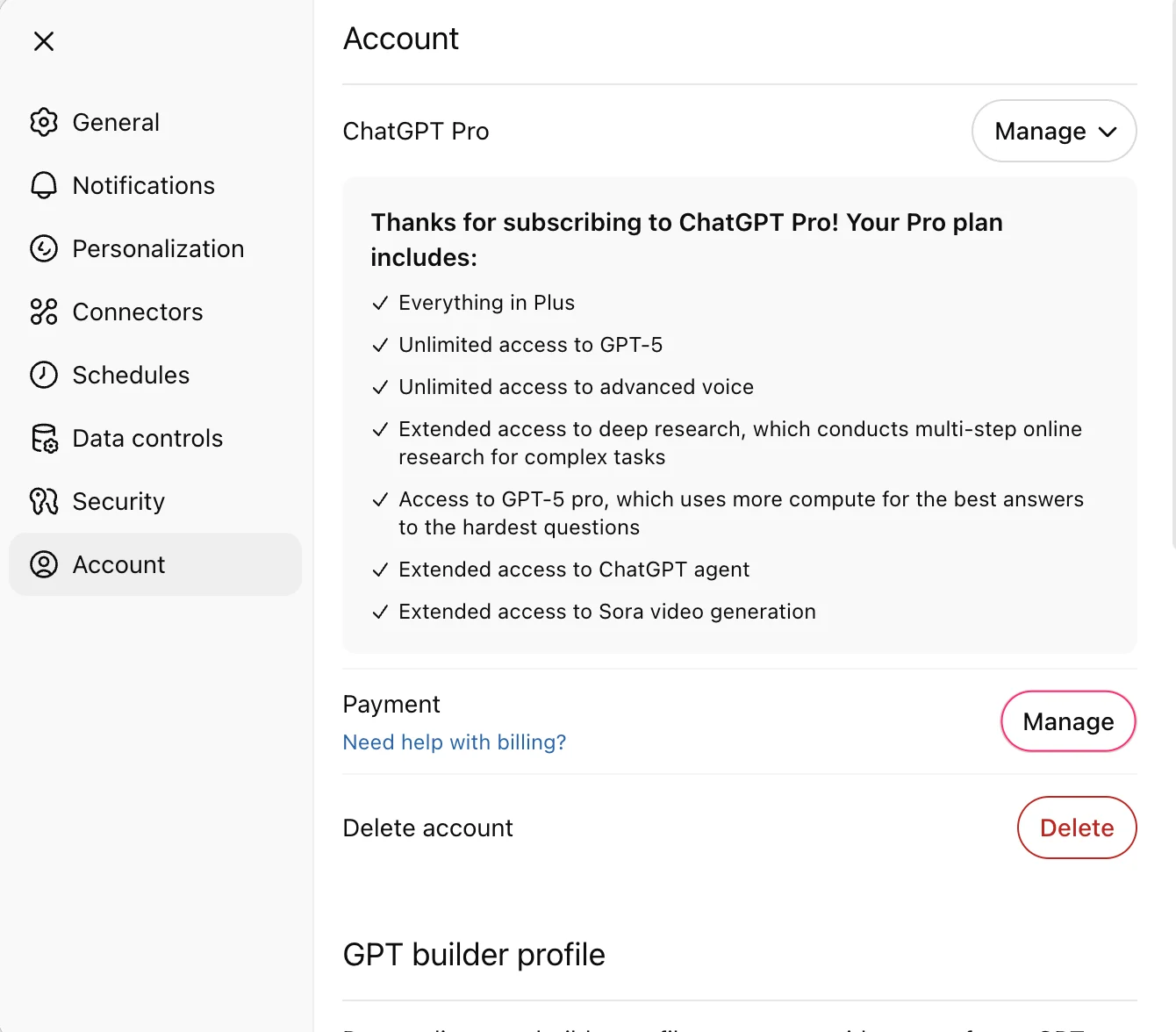
If you see Payment in Account settings
Some accounts use a billing portal instead. Follow these steps if Payment appears in Account settings.
Go to Settings > Account.
Under Payment, select Manage.
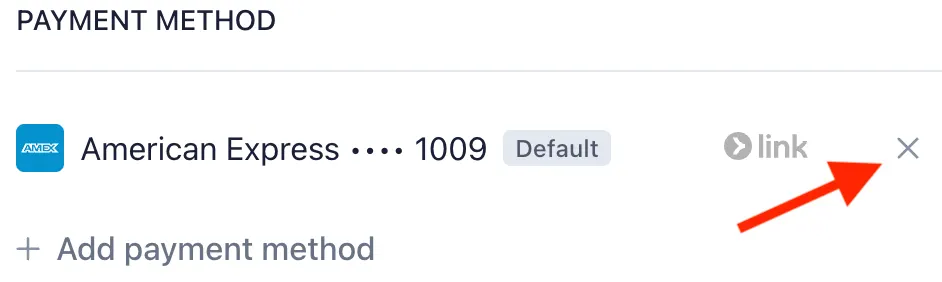
In the billing portal, select × beside the payment method you want to remove.
ChatGPT Business
Only workspace owners can manage Business billing.
Switch to the Business workspace that uses the payment method.
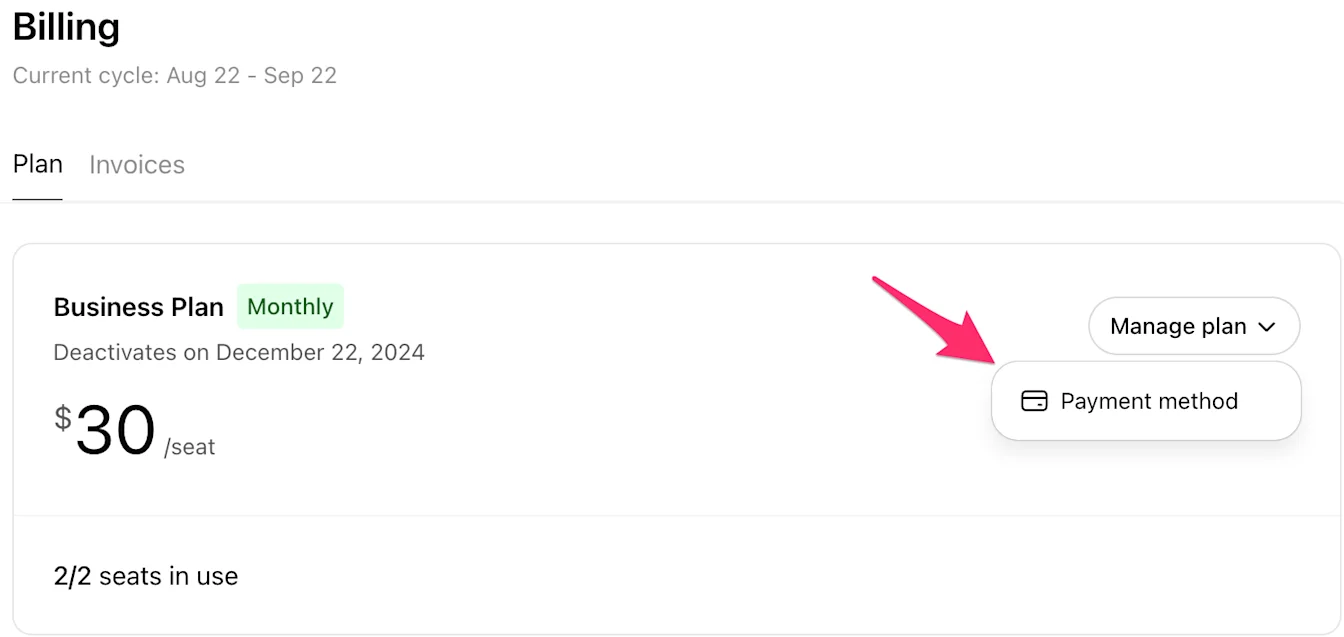
Go to Workspace settings, then select Billing > Plan.
Open Manage plan and select Payment method.
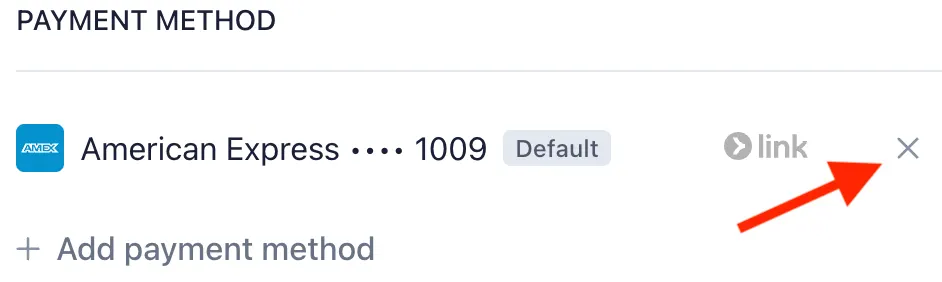
In the billing portal, select × beside the payment method you want to remove.
If workspace ownership is changing, coordinate the replacement payment method with the new owner before removing yours.
API Platform
Sign in with an account that has permission to manage the organization’s billing, then select the correct organization.
Go to Billing > Payment methods.
On the card you want to remove, select Delete.

If Delete is unavailable for the default card, add another payment method and select Set as default for it, then try deleting the old card again.
If you cannot remove a payment method
Only Edit appears for a saved card
If a card is marked Default in ChatGPT’s Billing settings, its menu may show Edit without Remove. To replace it, add another payment method, select Set as default for the replacement, then try removing the old card.
If you want to remove your only saved card and no removal option is available, contact Support.
The card remains after cancellation
An active subscription or a cancellation that has not taken effect can prevent removal. Check the cancellation status and the end of your current billing period.
If your plan has already ended or your account is on Free, contact Support if no removal option is available.
The card is used for auto-reload
If ChatGPT says the card is used for auto-reload, select Manage auto-reload. Choose another payment method or turn off auto-reload, then try removing the card again.
There is an unpaid invoice or payment failure
Outstanding charges can block removal. If the charge is expected, pay the invoice or update the payment method as instructed in billing settings. Contact Support if you cannot resolve it.
You cannot open billing settings
For a Business workspace, ask a workspace owner to manage the payment method. If you are an owner but the workspace is deactivated or billing settings are inaccessible, contact Support.
For API billing, check that you have selected the correct organization and have permission to manage its billing. Ask an organization owner to check your access. If you still cannot access billing, contact Support.
Get help
Contact Support if the relevant steps do not resolve the issue. Include:
The email address you use to sign in.
Whether the payment method is in personal ChatGPT, a Business workspace, or an API organization, and the workspace or organization name if relevant.
Your plan or cancellation status, the missing option or exact error, and the steps you tried.
A screenshot with sensitive details hidden. Do not send a full card number, security code, password, or verification code.
For a charge you do not recognize, see: Unrecognized ChatGPT or API Credit Purchase Charges.