
Overview
If you used ChatGPT before joining your organization’s workspace, you may already have chats, files, and other content in your personal workspace. Merging your personal workspace migrates supported content to a ChatGPT Business or Enterprise workspace managed by your organization. What transfers depends on migration support and the destination workspace’s settings.
After migration, use your Business or Enterprise workspace to access migrated content. Your personal workspace no longer appears in the workspace switcher. Migrated content is subject to your organization’s access and retention policies.
Start a migration

Before you begin, save any important personal content and review the migration, access, and subscription guidance below. To start a migration into ChatGPT Business, open ChatGPT in a web browser and follow these steps, even if no automatic migration prompt appears:
Switch to the destination Business workspace from your profile menu.
Go to Settings > Data Controls.
Next to Merge data from your personal workspace, select Merge.
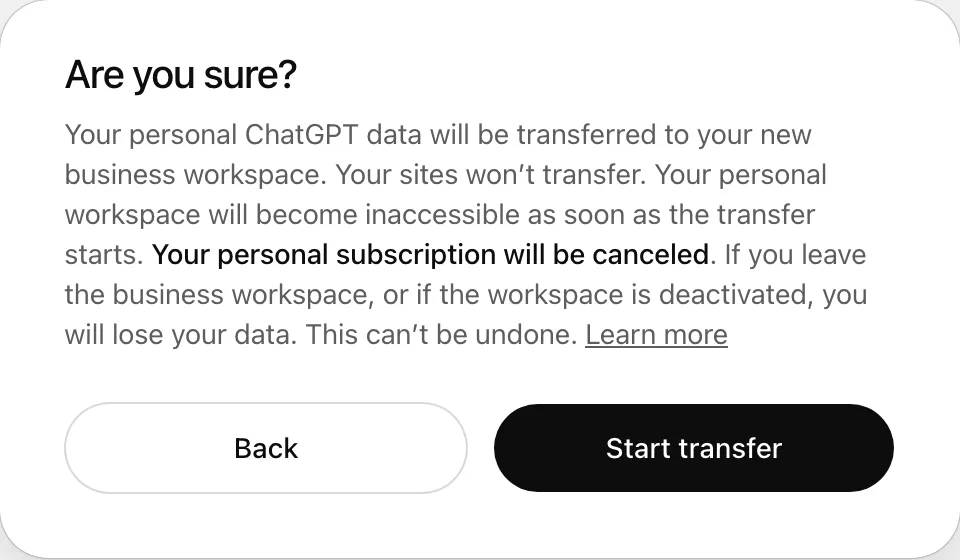
Follow the on-screen instructions.
You can also open the migration prompt directly in your browser. A message will be displayed if your account is not eligible to merge.
When you first access your ChatGPT Business or Enterprise workspace, a migration prompt may appear automatically. To migrate your personal data, select the transfer option and follow the on-screen instructions.
If the Merge option is missing, confirm that you are signed in with the account that has your personal workspace and that you have selected the intended Business workspace. If you still cannot find the option, contact Support and include your account email and destination workspace name.
Before you migrate
Creating or joining a Business workspace and migrating your personal content are separate steps. If your organization does not have a Business workspace, start with signing up for ChatGPT Business. If your organization already has a workspace, join it using the email address that received your invitation. If you have already joined, review the guidance below before starting a migration.
Choose whether to keep your personal workspace separate
In ChatGPT Business, you can keep your personal workspace separate or merge it into Business. If you keep them separate, you can switch between them, but their content stays separate and any personal subscription continues until you cancel it. Canceling that subscription does not delete your personal chats. Other Business members do not automatically see your private chats; you choose what to share.
For ChatGPT Enterprise, your organization’s onboarding requirements determine whether you can keep your personal workspace separate or must merge it. Follow the options shown when you join.
Review access and save important content
Your organization controls access to migrated content. If you leave, are removed, or lose access to the destination workspace, you may also lose access to that content.
Save copies of important conversations and files before you migrate. Some older or long-running conversations may not be retrievable afterward, and unsupported content does not transfer.
Self-service data export is not available in ChatGPT Business or Enterprise workspaces. Download and check any personal data export you need before merging. For steps, see: exporting your ChatGPT data.
Migration does not provide an undo option that moves content from your organization’s workspace back into your personal workspace. Review your organization’s requirements before proceeding. If your Business workspace is deactivated, see the personal-workspace recovery guidance under Access your data after migration.
After the merge, your personal workspace is deactivated and no longer appears in the workspace switcher. Its data is not deleted as part of the merge.
Check your personal subscription
When you merge into ChatGPT Business, an active personal subscription is automatically canceled and the unused portion is refunded, except for subscriptions purchased through a mobile app store. If you subscribed through the Apple App Store or Google Play, check your subscription there and cancel it if it’s still active. If charges continue, contact Support.
For mobile subscriptions, see: How do I avoid being charged twice if I subscribe to ChatGPT on iOS, Android, and the web?.
Review GPT Builder Profile domain verification
If you previously verified a domain in your personal GPT Builder Profile, you may need to verify it again in the destination workspace after migration.
If verification reports that the domain is already verified by another organization, remove the domain from your personal GPT Builder Profile before retrying. If you can no longer access that profile, contact Support.
Understand what migrates and what does not
The migration flow does not let you select individual chats, projects, or files to transfer. Review the supported content and exclusions below before continuing. In ChatGPT Business, you can keep your personal workspace separate instead.
Conversations and files
Supported conversations saved in your personal workspace’s cloud history transfer to the destination workspace.
Supported files saved in the Library are copied and are available in migrated conversations. Supported documents and images uploaded to a conversation but not saved in the Library also migrate. Expired, deleted, unsupported, or unowned files may be unavailable afterward, so save copies of anything you need.
Custom GPTs
Custom GPTs you created transfer with their configuration, instructions, and supported knowledge files. GPTs you used that were created by other users are not migrated, and your access to them depends on the destination workspace’s policies.
Private GPTs remain private. If a GPT was previously shared by public link or published in the GPT Store, share it again after migration if you want it to remain publicly available and your destination workspace allows it. Review the migrated GPT’s sharing settings. Available sharing options depend on your destination workspace’s settings and your permissions. Review any tools or connected services after migration.
Projects
Projects you created transfer with their settings, instructions, and supported project files. Your migrated project conversations are linked to the corresponding project. Projects you participate in that are owned by other users are not migrated, even if you have access to them. Access to shared content depends on membership and permissions in the destination workspace.
Library
Eligible files and folders in your personal Library transfer with their names and folder organization. If the destination workspace has configured data retention settings, migrated files in your Library may be deleted after some time in accordance with the workspace’s retention settings.
Automations
Supported personal automations transfer with their instructions, schedules, time zones, and notification preferences. Review your automations after migration.
Saved memory
Supported saved memories that apply across your chats are eligible to transfer to the destination workspace. Transferred memories are added to existing destination memories without replacing them. Memories scoped to a particular project or other restricted context are not included in this saved-memory transfer.
Whether ChatGPT can use memory after migration depends on your personal settings and your organization’s controls. Transferring saved memories does not turn Memory on. For Business-specific settings, see: ChatGPT Business memory FAQ.
Personalization
Your custom instructions, profile details such as your name and role, selected personality, and supported response-style preferences are eligible to transfer. If you have already configured personalization in the destination workspace, those existing preferences take precedence and are not overwritten. Memory settings and tool settings are not copied as part of personalization.
Plugins
Enabled plugins from the directory can transfer if the destination workspace allows them. Custom plugins do not transfer.
Connected apps
Eligible connected-app authentication can transfer. The destination workspace’s allowed apps and account policies may prevent some connections from transferring. If you already have a connection to that app in the destination workspace, that connection is kept instead of being replaced.
Custom connectors, connections already requiring reauthentication, and unsupported sign-in methods do not transfer.
Sites
Sites do not transfer. After migration, you may lose access to edit or manage your personal Sites, even if a published Site remains online. Save the Site content you need and resolve any ongoing site-management needs before you migrate.
Find your content after migration
Content may appear gradually while migration completes. Seeing some conversations does not mean every file or other data type is ready. Check that you are in the correct destination workspace, then review your conversations, GPTs, projects, Library, automations, saved memory, personalization, plugins, and connected apps.
If something appears to be missing:
Confirm that you selected the correct Business or Enterprise workspace.
Refresh ChatGPT, or sign out and sign back in.
Use chat search and check Archived chats for missing conversations.
Check the relevant resource list, such as your GPTs, projects, or Library.
If content is still missing, contact Support. Include your account email, destination workspace name or ID, missing item names or approximate dates, and any error messages or screenshots.
Access your data after migration
If you leave or lose access to your organization’s workspace, you may lose access to migrated content. That content does not move back to your personal workspace. You can continue using a separate personal workspace if you have access to one.
If ChatGPT is unavailable in your Business workspace after a seat change, ask an owner to check your assigned seat type. For details, see: legacy Codex seats and ChatGPT access.
If your Business workspace is deactivated
If you previously merged your personal workspace into Business, follow the personal-workspace option shown when that Business workspace is deactivated. In the Create a personal workspace flow for this situation, your original personal workspace and its data are reactivated.
Your Business content remains in the Business workspace. Reactivating your personal workspace does not restore Business access or copy your Business activity back. For Business reactivation steps, see: Managing billing and seats in ChatGPT Business.