
Descripción general
Puedes eliminar formas de pago guardadas en la configuración de facturación de ChatGPT o de la Plataforma API. Sigue los pasos correspondientes para la cuenta, el espacio de trabajo o la organización que tiene registrada la forma de pago.
Eliminar una forma de pago no cancela una suscripción, no borra facturas anteriores ni revierte cargos. Para evitar que una suscripción a ChatGPT se renueve, consulta: Cancelar tu suscripción a ChatGPT.
Para evitar interrupciones en los servicios de pago, agrega una forma de pago alternativa antes de eliminar la anterior.
Eliminar una forma de pago
Si Apple o Google factura tu suscripción, administra la forma de pago a través de tu cuenta de Apple o Google Play. Los pasos que se indican a continuación no modifican una forma de pago de una tienda.
ChatGPT en la web
Sigue estos pasos para una cuenta personal de ChatGPT. Una cuenta gratuita aún puede tener una forma de pago guardada.
Ve a Configuración > Facturación en ChatGPT en la web.
En Formas de pago, selecciona el menú de más opciones (•••) de la tarjeta.
Seleccionar Eliminar. Si no está disponible, sigue los pasos de solución de problemas que se indican a continuación.
Si no aparecen las opciones de facturación o pago, inicia sesión en la misma cuenta de ChatGPT desde otro navegador y vuelve a intentar abrir la configuración de facturación.
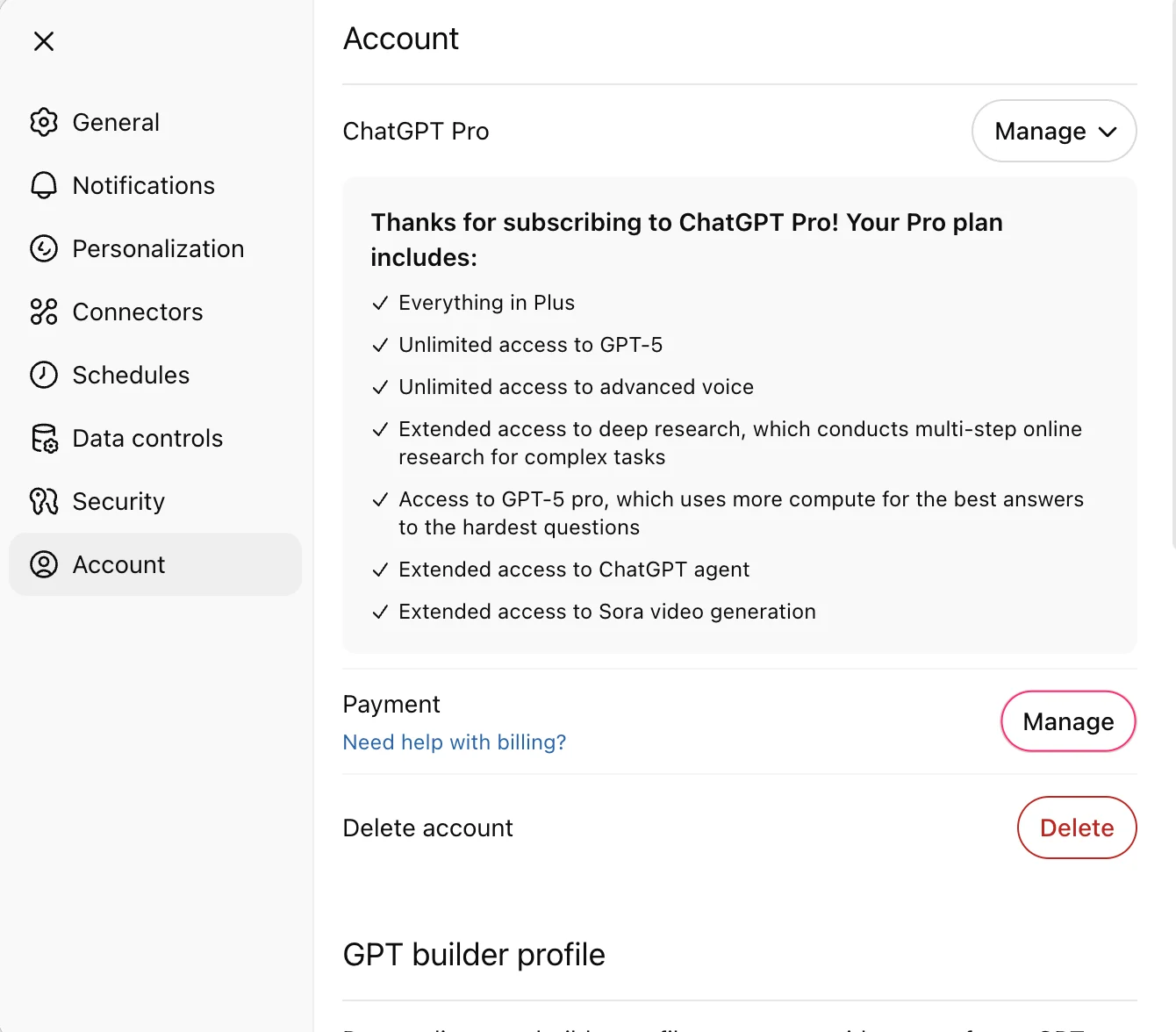
Si ves Pago en Configuración de la cuenta
Algunas cuentas utilizan un portal de facturación. Sigue estos pasos si aparece Pago en la configuración de Cuenta.
Ve a Configuración > Cuenta.
En Pago, selecciona Administrar.
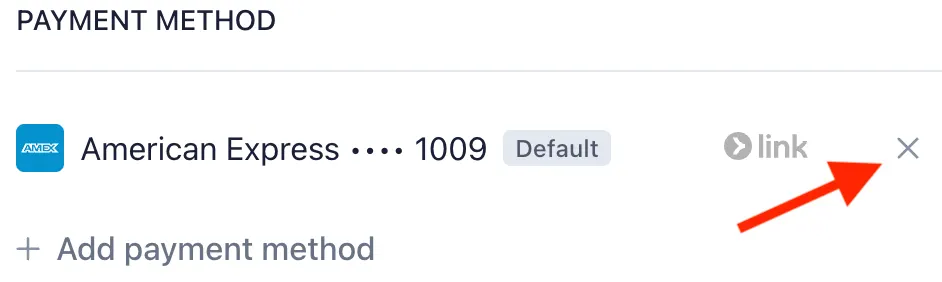
En el portal de facturación, selecciona × junto a la forma de pago que quieres eliminar.
ChatGPT Negocios
Solo los propietarios del espacio de trabajo pueden administrar la facturación de Business.
Cambia al espacio de trabajo de Business que usa la forma de pago.
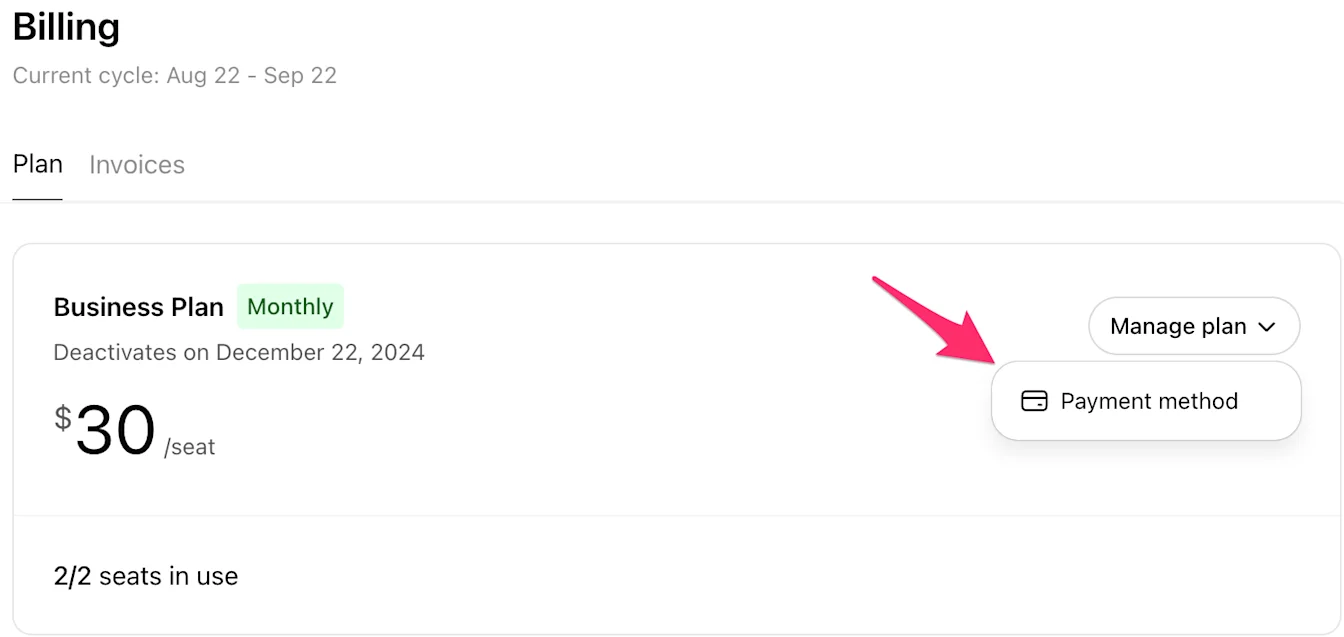
Ve a Configuración del espacio de trabajo y luego selecciona Facturación > Plan.
Abre Administrar plan y selecciona Forma de pago.
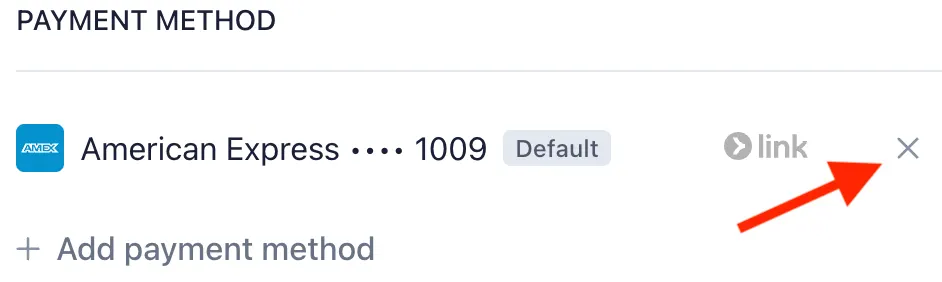
En el portal de facturación, selecciona × junto a la forma de pago que quieres eliminar.
Si la titularidad del espacio de trabajo va a cambiar, coordina la forma de pago alternativa con el nuevo propietario antes de eliminar la tuya.
Plataforma API
Inicia sesión con una cuenta que tenga permiso para administrar la facturación de la organización y, luego, selecciona la organización correcta.
En la tarjeta que quieres eliminar, selecciona Eliminar.

Si Eliminar no está disponible para la tarjeta predeterminada, agrega otra forma de pago y selecciona Establecer como predeterminada; luego intenta eliminar la tarjeta anterior de nuevo.
Si no puedes eliminar una forma de pago
Solo aparece Editar para una tarjeta guardada
Si una tarjeta está marcada como Predeterminada en la configuración de Facturación de ChatGPT, es posible que el menú muestre Editar, pero no Eliminar. Para reemplazarla, agrega otra forma de pago, selecciona Establecer como predeterminada para el reemplazo y luego intenta eliminar la tarjeta anterior.
Si quieres eliminar tu única tarjeta guardada y no hay ninguna opción disponible para eliminarla, comunícate con Soporte.
La tarjeta sigue apareciendo después de la cancelación
Una suscripción activa o una cancelación que aún no ha entrado en vigor pueden impedir la eliminación. Consulta el estado de la cancelación y el final de tu período de facturación actual.
Si tu plan ya finalizó o tu cuenta está en el plan gratuito, comunícate con soporte si no hay una opción de eliminación disponible.
La tarjeta se usa para la recarga automática
Si ChatGPT indica que la tarjeta se usa para la recarga automática, selecciona Administrar recarga automática. Elige otra forma de pago o desactiva la recarga automática; luego, vuelve a intentar eliminar la tarjeta.
Hay una factura sin pagar o un error en el pago
Los cargos pendientes pueden impedir la eliminación. Si el cargo es esperado, paga la factura o actualiza la forma de pago según se indique en la configuración de facturación. Comunícate con soporte si no puedes resolverlo.
No puedes abrir la configuración de facturación
Para un espacio de trabajo de Business, pide a un propietario del espacio de trabajo que administre la forma de pago. Si eres propietario, pero el espacio de trabajo está desactivado o no puedes acceder a la configuración de facturación, comunpicate con soporte.
Para la facturación de la API, comprueba que hayas seleccionado la organización correcta y que tengas permiso para administrar su facturación. Pídele a un propietario de la organización que revise tu acceso. Si aún no puedes acceder a la facturación, comunícate con el equipo de soporte.
Obtener ayuda
Comunícate con soporte si los pasos correspondientes no resuelven el problema. Incluye:
La dirección de correo electrónico que usas para iniciar sesión.
Si la forma de pago está en ChatGPT personal, en un espacio de trabajo Business o en una organización de API y el nombre del espacio de trabajo o de la organización, si corresponde.
El estado de tu plan o de la cancelación, la opción que falta o el error exacto y los pasos que intentaste.
Una captura de pantalla con los detalles confidenciales ocultos. No envíes número completo de tarjeta, código de seguridad, contraseña ni código de verificación.
Para un cargo que no reconoces, consulta: Cargos por compra de créditos de ChatGPT o de la API no reconocidos.